Every team has that one Slack channel where people paste code snippets, ask "how do I do X?", or need a quick summary of a long thread. Instead of answering the same questions repeatedly, you can build an AI-powered Slack bot that handles it — using Python, the Claude API through EzAI, and about 150 lines of code.
By the end of this tutorial, you'll have a bot that responds to mentions, maintains thread context, and handles slash commands — all running behind EzAI's unified API so you get access to Claude, GPT, and Gemini through a single endpoint.
Prerequisites
You'll need three things before we start:
- Python 3.10+ installed on your machine
- A Slack workspace where you can create apps (any free workspace works)
- An EzAI API key — grab one from your dashboard (comes with free credits)
Architecture Overview
The bot uses Slack's Events API with Socket Mode, so you don't need a public server or ngrok. Messages flow like this:
- User mentions the bot or uses a slash command in Slack
- Slack pushes the event to your Python process via WebSocket
- Your bot extracts the message, fetches thread history for context
- Sends the conversation to Claude API through EzAI
- Posts the AI response back to the Slack thread
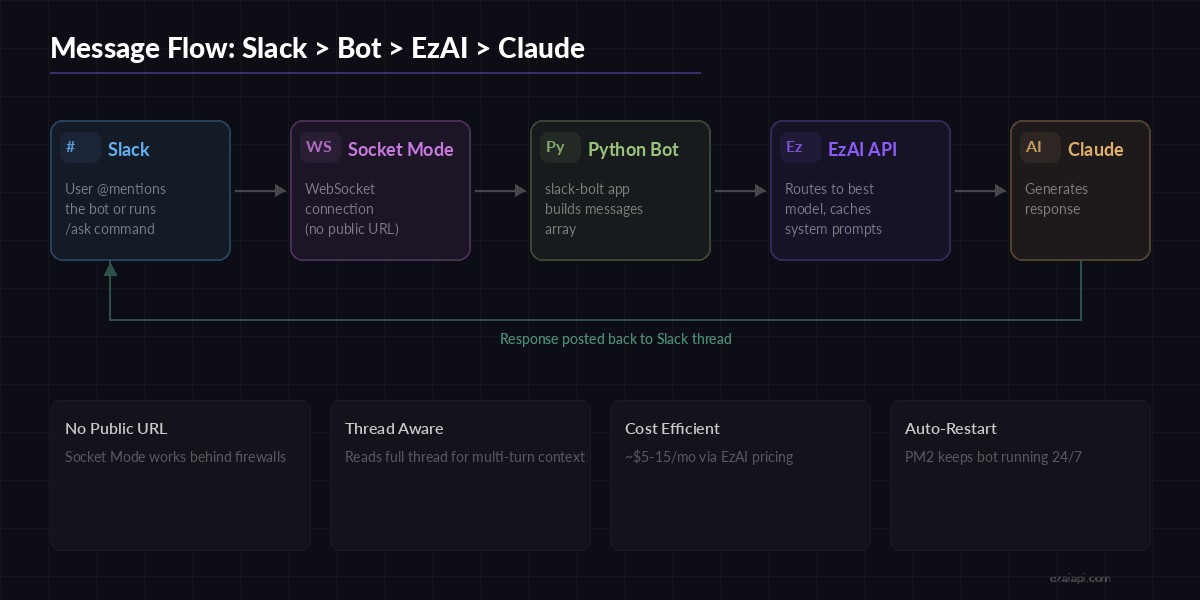
Message flow: Slack → Socket Mode → Python → EzAI API → Claude → Slack reply
Socket Mode means your bot connects outward to Slack rather than listening on a port. This works behind firewalls, on your laptop, or in any environment without public DNS.
Step 1: Create the Slack App
Head to api.slack.com/apps and click Create New App → From scratch. Name it something like "AI Assistant" and pick your workspace.
Under Socket Mode, enable it and generate an app-level token with the connections:write scope. Save this token — it's your SLACK_APP_TOKEN.
Then configure these permissions under OAuth & Permissions → Bot Token Scopes:
app_mentions:read— so the bot sees when it's mentionedchat:write— so it can replychannels:history— to read thread contextcommands— for slash commands
Install the app to your workspace and copy the Bot User OAuth Token — that's your SLACK_BOT_TOKEN.
Step 2: Install Dependencies
pip install slack-bolt anthropic python-dotenvslack-bolt is Slack's official Python framework — it handles WebSocket connections, event parsing, and retry logic. anthropic is the official SDK that works seamlessly with EzAI's endpoint.
Step 3: Build the Bot
Create a .env file with your credentials:
SLACK_BOT_TOKEN=xoxb-your-bot-token
SLACK_APP_TOKEN=xapp-your-app-token
EZAI_API_KEY=sk-your-ezai-key
Now the main bot file. This handles mentions, reads thread context, and routes to Claude through EzAI:
import os, re
from dotenv import load_dotenv
from slack_bolt import App
from slack_bolt.adapter.socket_mode import SocketModeHandler
import anthropic

load_dotenv()

app = App(token=os.environ["SLACK_BOT_TOKEN"])

# Connect to Claude via EzAI — just set base_url
claude = anthropic.Anthropic(
    api_key=os.environ["EZAI_API_KEY"],
    base_url="https://ezaiapi.com",
)

SYSTEM_PROMPT = """You are a helpful AI assistant in a Slack workspace.
Keep responses concise and use Slack markdown (bold: *text*,
code: `code`, blocks: ```code```). Stay under 300 words unless
the user explicitly asks for detail."""


def get_thread_messages(client, channel, thread_ts):
    """Fetch thread history for multi-turn context."""
    result = client.conversations_replies(
        channel=channel, ts=thread_ts, limit=20
    )
    messages = []
    for msg in result["messages"]:
        # Strip bot mention from user messages
        text = re.sub(r"<@[A-Z0-9]+>\s*", "", msg.get("text", ""))
        if not text.strip():
            continue
        role = "assistant" if msg.get("bot_id") else "user"
        messages.append({"role": role, "content": text})
    return messages


def ask_claude(messages):
    """Send conversation to Claude and return the response."""
    response = claude.messages.create(
        model="claude-sonnet-4-5",
        max_tokens=1024,
        system=SYSTEM_PROMPT,
        messages=messages,
    )
    return response.content[0].text


# Handle @mentions
@app.event("app_mention")
def handle_mention(event, client, say):
    thread_ts = event.get("thread_ts", event["ts"])

    # Show typing indicator
    client.reactions_add(
        channel=event["channel"],
        timestamp=event["ts"],
        name="thinking_face",
    )

    # Build conversation from thread
    if event.get("thread_ts"):
        messages = get_thread_messages(
            client, event["channel"], thread_ts
        )
    else:
        text = re.sub(r"<@[A-Z0-9]+>\s*", "", event["text"])
        messages = [{"role": "user", "content": text}]

    reply = ask_claude(messages)
    say(text=reply, thread_ts=thread_ts)

    # Remove thinking indicator
    client.reactions_remove(
        channel=event["channel"],
        timestamp=event["ts"],
        name="thinking_face",
    )


if __name__ == "__main__":
    print("⚡ Bot is running!")
    handler = SocketModeHandler(app, os.environ["SLACK_APP_TOKEN"])
    handler.start()
That's a fully functional bot. Run it with python bot.py and mention the bot in any channel — it'll reply with Claude's response in the thread.
Step 4: Add Slash Commands
Slash commands are great for structured interactions. Let's add /ask for quick questions and /summarize for thread summaries:
@app.command("/ask")
def handle_ask(ack, command, say):
    ack()  # Acknowledge within 3 seconds
    question = command["text"]
    if not question:
        say("Usage: `/ask your question here`")
        return

    reply = ask_claude([{"role": "user", "content": question}])
    say(
        text=f"*Q:* {question}\n\n{reply}",
        channel=command["channel_id"],
    )


@app.command("/summarize")
def handle_summarize(ack, command, client, say):
    ack()
    # Fetch recent channel messages
    history = client.conversations_history(
        channel=command["channel_id"], limit=50
    )
    texts = [m["text"] for m in history["messages"] if m.get("text")]
    conversation = "\n".join(reversed(texts))

    prompt = f"Summarize this Slack conversation in 3-5 bullet points:\n\n{conversation}"
    summary = ask_claude([{"role": "user", "content": prompt}])
    say(text=f"*📋 Channel Summary:*\n\n{summary}")
Register these commands in your Slack app settings under Slash Commands. Since we're using Socket Mode, you can use any URL as the request URL — Slack ignores it and routes through the WebSocket instead.
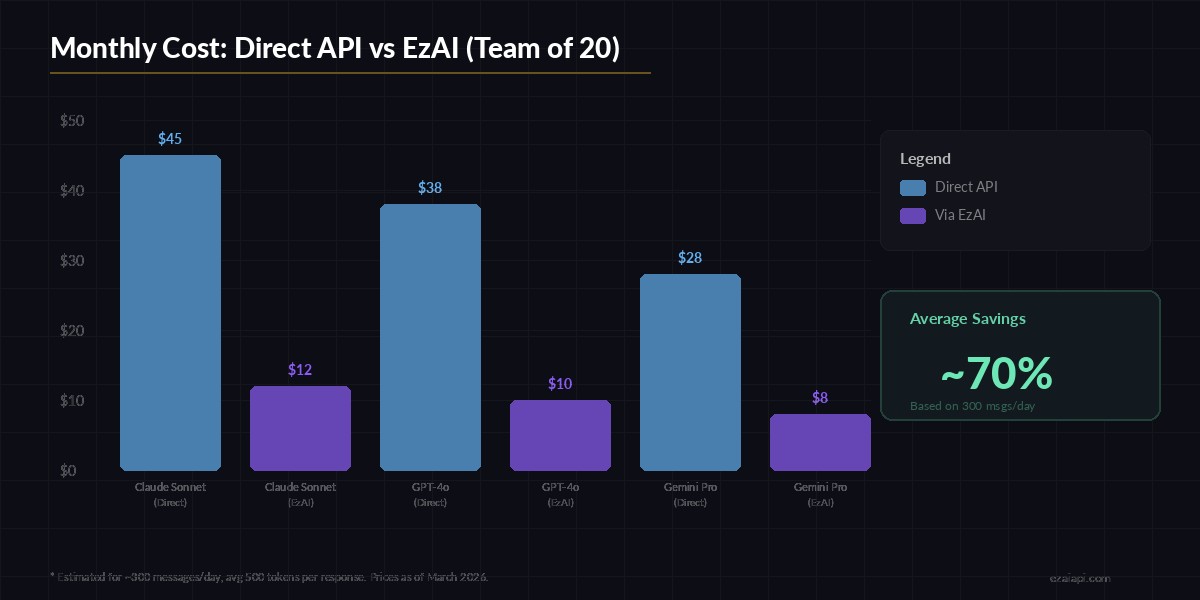
Monthly cost estimate for a team Slack bot — EzAI reduces API spend significantly
Step 5: Deploy with PM2
For production, wrap the bot in PM2 so it auto-restarts on crashes and survives reboots:
# Install PM2 if you haven't
npm install -g pm2

# Start the bot
pm2 start bot.py --name slack-ai-bot --interpreter python3

# Auto-start on reboot
pm2 save
pm2 startup
Check logs anytime with pm2 logs slack-ai-bot. If Claude returns an error (rate limit, token overflow), slack-bolt catches it gracefully and your bot stays up.
Cost Optimization Tips
A Slack bot in a 20-person team might handle 200-400 messages per day. Here's how to keep costs minimal:
- Use Sonnet for most queries — it's fast and cheap. Reserve Opus for complex code analysis via a
/deep-askcommand - Limit thread context — fetching 20 messages is usually enough. Older context rarely matters
- Set max_tokens wisely — 1024 tokens covers most Slack replies. You're paying for output tokens
- Cache system prompts — EzAI supports prompt caching which can cut costs by 90% on repeated system prompts
With EzAI's pricing, a moderately active Slack bot costs roughly $5-15/month — less than a single Slack Pro seat. Check the pricing page for exact per-model rates.
Going Further
Once the base bot is running, there's a lot you can add:
- Model switching — let users pick models with
/ask-gptor/ask-geminisince EzAI supports them all - File analysis — use Slack's
files.infoAPI to grab uploaded code files and pass them to Claude for review - Rate limiting — add a per-user cooldown to prevent one person from burning through your budget. See our guide on handling rate limits
- Extended thinking — for complex reasoning tasks, enable extended thinking on specific commands
The full source code for this tutorial is on GitHub. Clone it, swap in your tokens, and you'll have a working AI assistant in your Slack workspace in under 10 minutes.