Vision APIs let you send images to AI models and get structured responses back. You can analyze screenshots, extract text from documents, describe photos, detect objects, or even have conversations about visual content. Modern models like Claude Sonnet 4, GPT-4o, and Gemini 2.0 all support vision natively — and you can access all of them through EzAI's single endpoint.
This guide covers everything: how the API works, code examples for common use cases, and tips for getting the best results from vision models.
How Vision APIs Work
Vision APIs accept images as part of your message content. Instead of sending only text, you send a multi-part message that includes both text and image data. The model processes them together and responds accordingly.
There are two ways to include images:
- Base64 encoding — Embed the image data directly in your request
- URL reference — Point to a publicly accessible image URL
Base64 is more reliable (no network issues, works with private images), while URLs are simpler for publicly hosted content. Both work with EzAI's API.
Basic Vision Request
Here's the simplest possible vision request — sending an image URL and asking the model to describe it:
curl https://ezaiapi.com/v1/messages \
  -H "x-api-key: sk-your-key" \
  -H "anthropic-version: 2023-06-01" \
  -H "content-type: application/json" \
  -d '{
    "model": "claude-sonnet-4-5",
    "max_tokens": 1024,
    "messages": [{
      "role": "user",
      "content": [
        {
          "type": "image",
          "source": {
            "type": "url",
            "url": "https://example.com/photo.jpg"
          }
        },
        {
          "type": "text",
          "text": "What do you see in this image?"
        }
      ]
    }]
  }'
The key difference from a text-only request is the content field — instead of a string, it's an array of content blocks. Each block has a type (either "image" or "text") and the corresponding data.
Python Implementation
Here's a complete Python function that handles both URL and base64 images:
import anthropic
import base64
from pathlib import Path

client = anthropic.Anthropic(
    api_key="sk-your-key",
    base_url="https://ezaiapi.com"
)

def analyze_image(image_path: str, prompt: str) -> str:
    # Read and encode the image
    image_data = Path(image_path).read_bytes()
    base64_image = base64.b64encode(image_data).decode("utf-8")

    # Detect media type from extension
    suffix = Path(image_path).suffix.lower()
    media_types = {
        ".jpg": "image/jpeg",
        ".jpeg": "image/jpeg",
        ".png": "image/png",
        ".gif": "image/gif",
        ".webp": "image/webp",
    }
    media_type = media_types.get(suffix, "image/jpeg")

    response = client.messages.create(
        model="claude-sonnet-4-5",
        max_tokens=2048,
        messages=[{
            "role": "user",
            "content": [
                {
                    "type": "image",
                    "source": {
                        "type": "base64",
                        "media_type": media_type,
                        "data": base64_image,
                    }
                },
                {
                    "type": "text",
                    "text": prompt
                }
            ]
        }]
    )

    return response.content[0].text

# Usage
result = analyze_image("screenshot.png", "Extract all text from this screenshot")
print(result)
This function reads any local image, encodes it to base64, and sends it to Claude for analysis. The media type detection ensures the API knows how to process the image correctly.
Common Use Cases
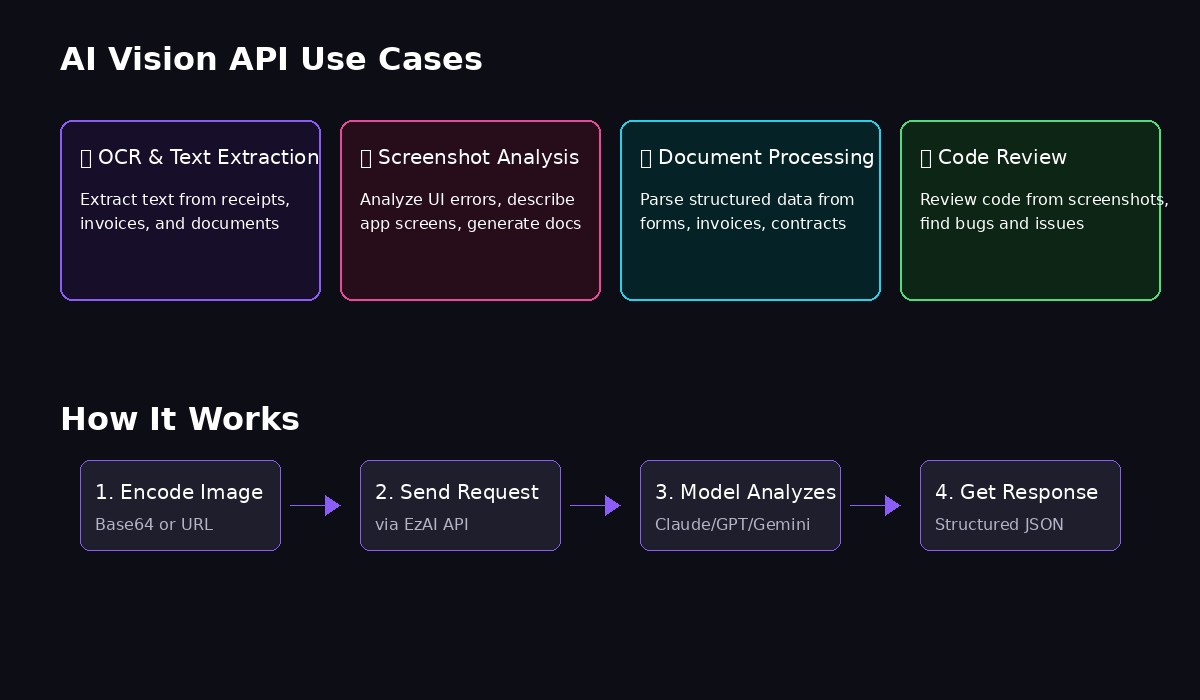
Common applications for AI vision: OCR, analysis, and automation
OCR / Text Extraction
Vision models are excellent at extracting text from images — often better than dedicated OCR tools because they understand context:
text = analyze_image(
    "receipt.jpg",
    """Extract all text from this receipt. Return as JSON:
{
  "store": "...",
  "date": "...",
  "items": [{"name": "...", "price": "..."}],
  "total": "..."
}"""
)
Screenshot Analysis
Analyze UI screenshots to describe what's on screen, identify errors, or generate documentation:
description = analyze_image(
    "error_screen.png",
    "Describe the error shown in this screenshot. What's the likely cause and how would you fix it?"
)
Document Processing
Extract structured data from invoices, forms, or any document images:
invoice_data = analyze_image(
    "invoice.pdf.png",  # Convert PDF page to image first
    """Parse this invoice and extract:
- Invoice number
- Date
- Vendor name and address
- Line items with quantities and prices
- Tax amount
- Total amount
Return as structured JSON."""
)
Code Review from Screenshots
If someone shares a screenshot of code, you can analyze it directly:
review = analyze_image(
    "code_screenshot.png",
    "Review this code. Identify any bugs, security issues, or improvements."
)
Multiple Images in One Request
You can send multiple images in a single request — useful for comparing images, processing batches, or providing context:
def compare_images(image1: str, image2: str, prompt: str) -> str:
    def encode(path):
        data = Path(path).read_bytes()
        return base64.b64encode(data).decode("utf-8")

    response = client.messages.create(
        model="claude-sonnet-4-5",
        max_tokens=2048,
        messages=[{
            "role": "user",
            "content": [
                {"type": "image", "source": {"type": "base64", "media_type": "image/png", "data": encode(image1)}},
                {"type": "image", "source": {"type": "base64", "media_type": "image/png", "data": encode(image2)}},
                {"type": "text", "text": prompt}
            ]
        }]
    )
    return response.content[0].text

# Compare two UI designs
diff = compare_images(
    "design_v1.png",
    "design_v2.png",
    "Compare these two UI designs. List all differences."
)
Best Practices
A few tips to get the most out of vision APIs:
- Be specific in your prompts — "Extract the email addresses" works better than "What text is there?"
- Request structured output — Ask for JSON when you need to parse the response programmatically
- Resize large images — Images over 4MB should be resized; most models work well with 1-2 megapixel images
- Use PNG for screenshots — JPEG compression can blur text and reduce OCR accuracy
- Provide context when needed — "This is a bank statement from Vietnam" helps the model interpret formats correctly
Supported Models
These EzAI models support vision inputs:
- Claude Sonnet 4.5 — Best overall quality, excellent at complex reasoning about images
- Claude Sonnet 4 — Great balance of speed and capability
- GPT-4o — Fast and capable, good for high-volume processing
- Gemini 2.0 Flash — Extremely fast, supports very large images
All use the same request format — just change the model parameter to switch between them.
Pricing
Vision requests are priced based on image tokens. A typical image (1024x1024) costs roughly 1,000-2,000 tokens depending on the model. Combined with text tokens, a simple vision request might cost $0.003-0.01 through EzAI — significantly less than direct API pricing.
Check our pricing page for current rates on each model.
Next Steps
You're ready to start using vision APIs! Here are some related guides:
- Getting Started with EzAI — Set up your API key
- Structured JSON Output — Get consistent JSON responses
- Streaming Responses — Get results in real-time
- Full API Documentation — Complete reference